
CANVA TOOL
INTRODUCTION TO CANVA TOOL
Canva makes designing easy for everyone.Using Canva you can design social media images,videos,gif to posters,websites,booklets,multimedia presentation and much more.Canva has thousands of templates to help you inspired.
How to enter into Canva?:-
First create an account or signing into Canva.Go to Canva.in,New member can signup or Login.if you click signup,you can continue with Google,Email or another way.
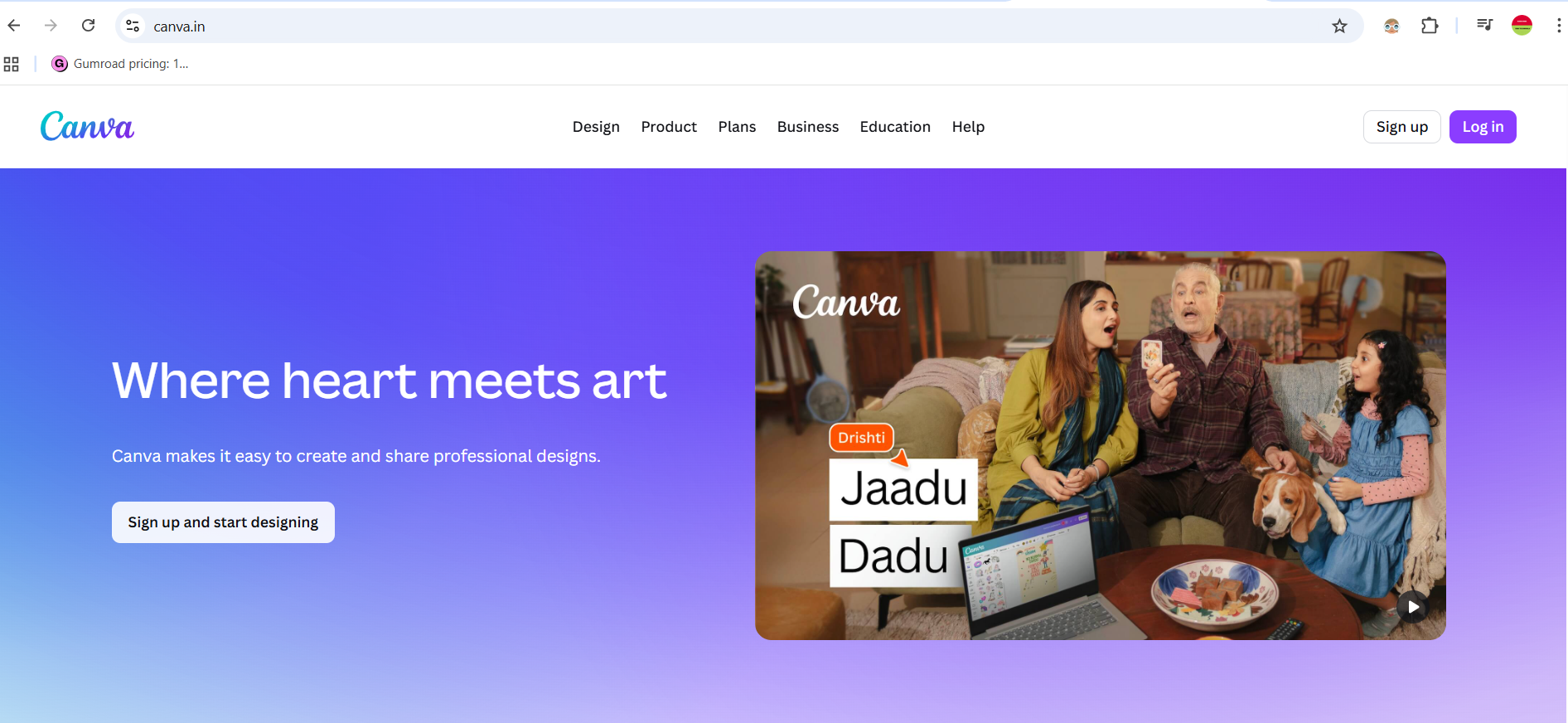
After logging in, you will see following screen.
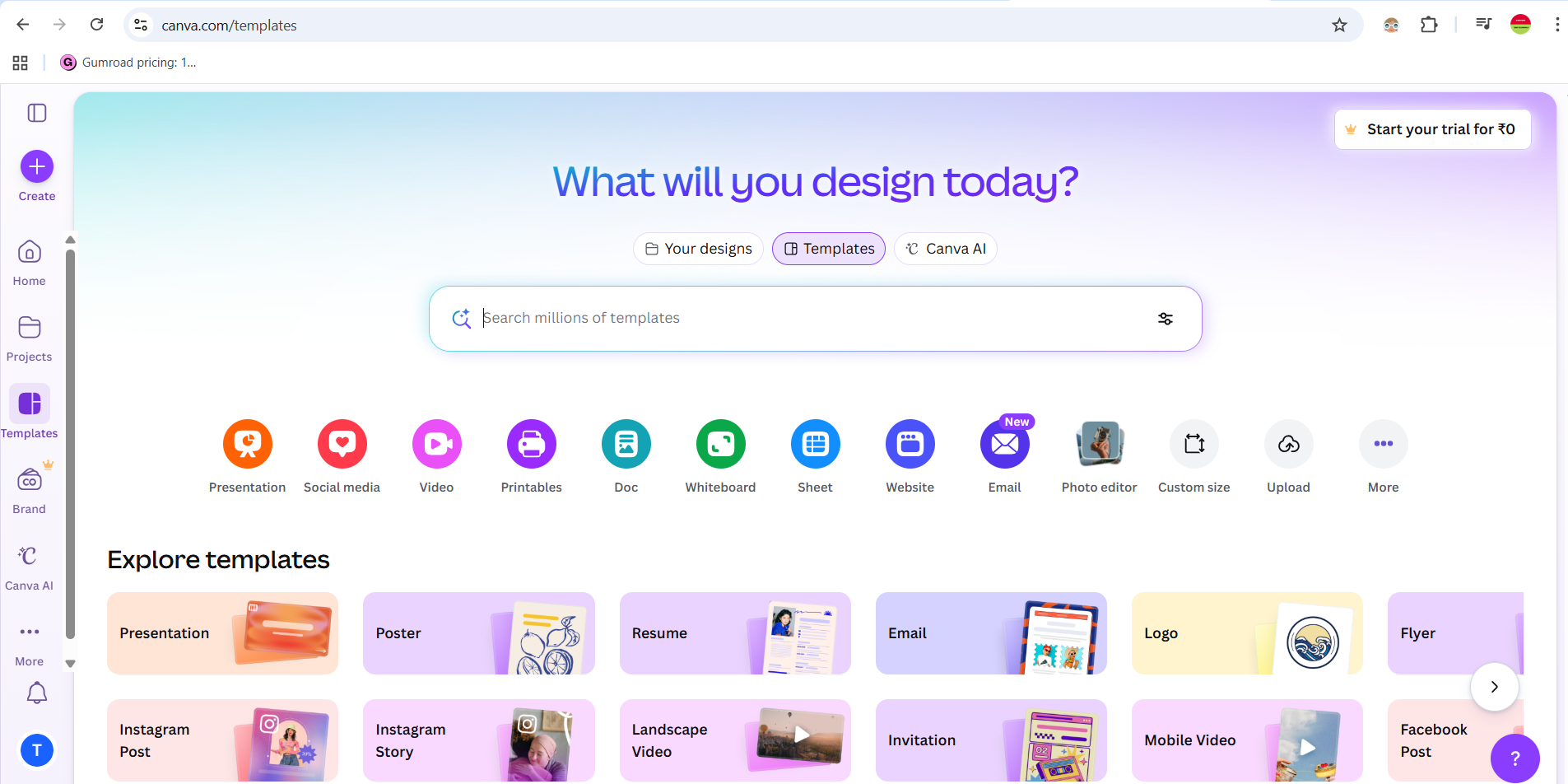
Exploring Dashboard Page-
Your Designs:- Here you will see all your recent designs and you can work with your designs here.
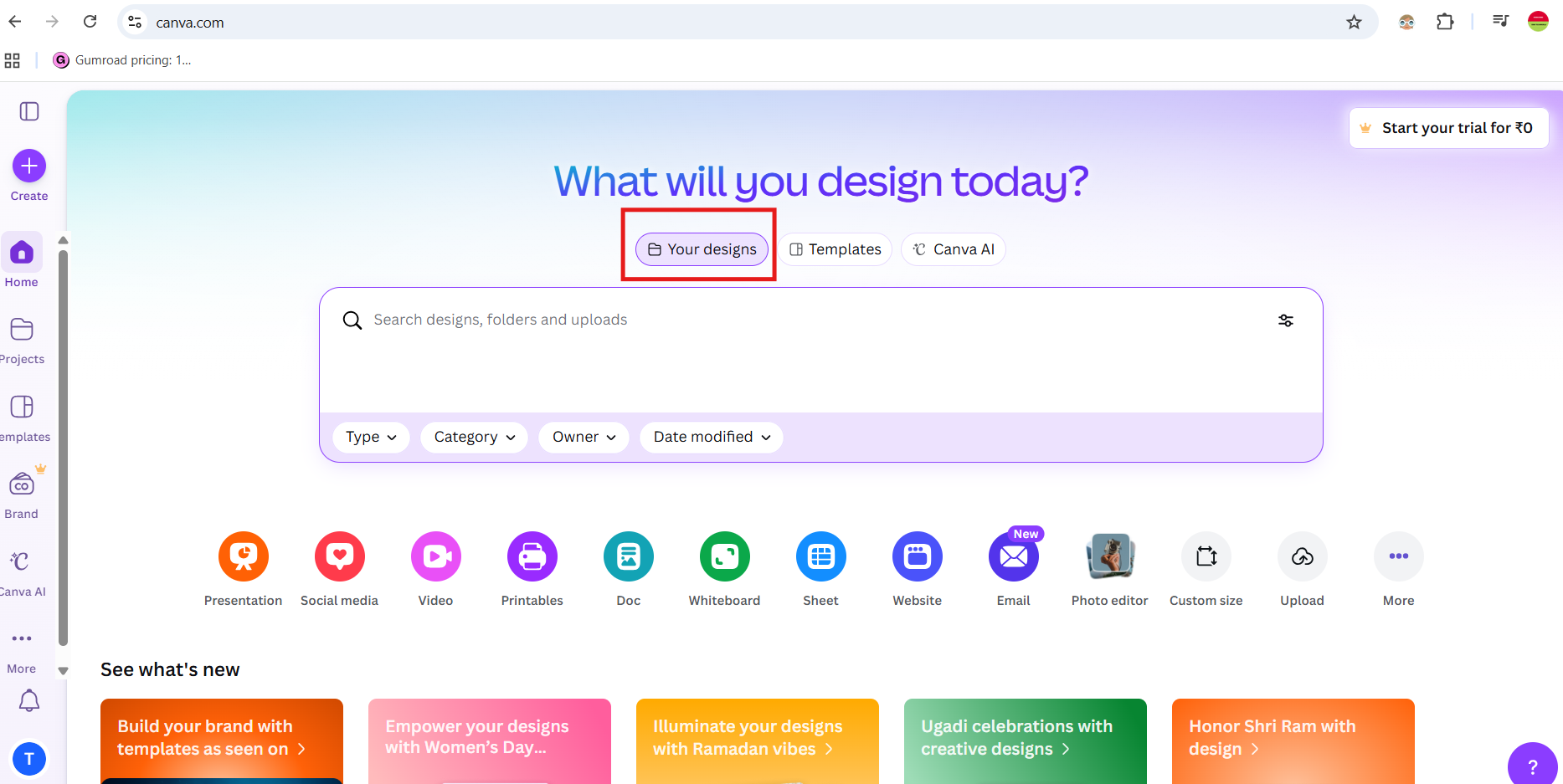
Templates :-
In this section , you will see all the inbuilt templates.You can design your own template using this inbuilt template.
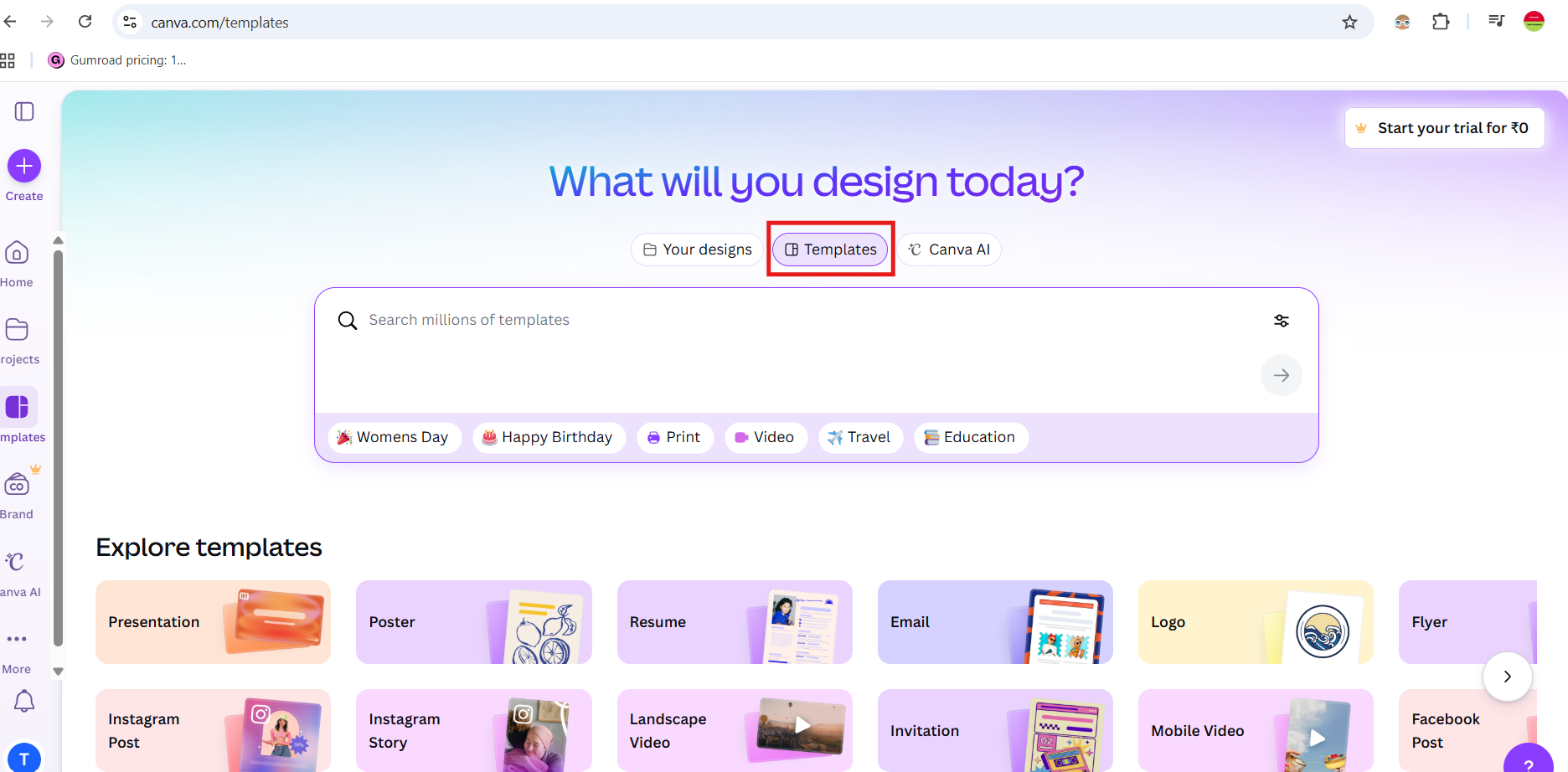
Canva AI :-
In this section , you will see all AI Templates. you can also use this AI templates for your design.
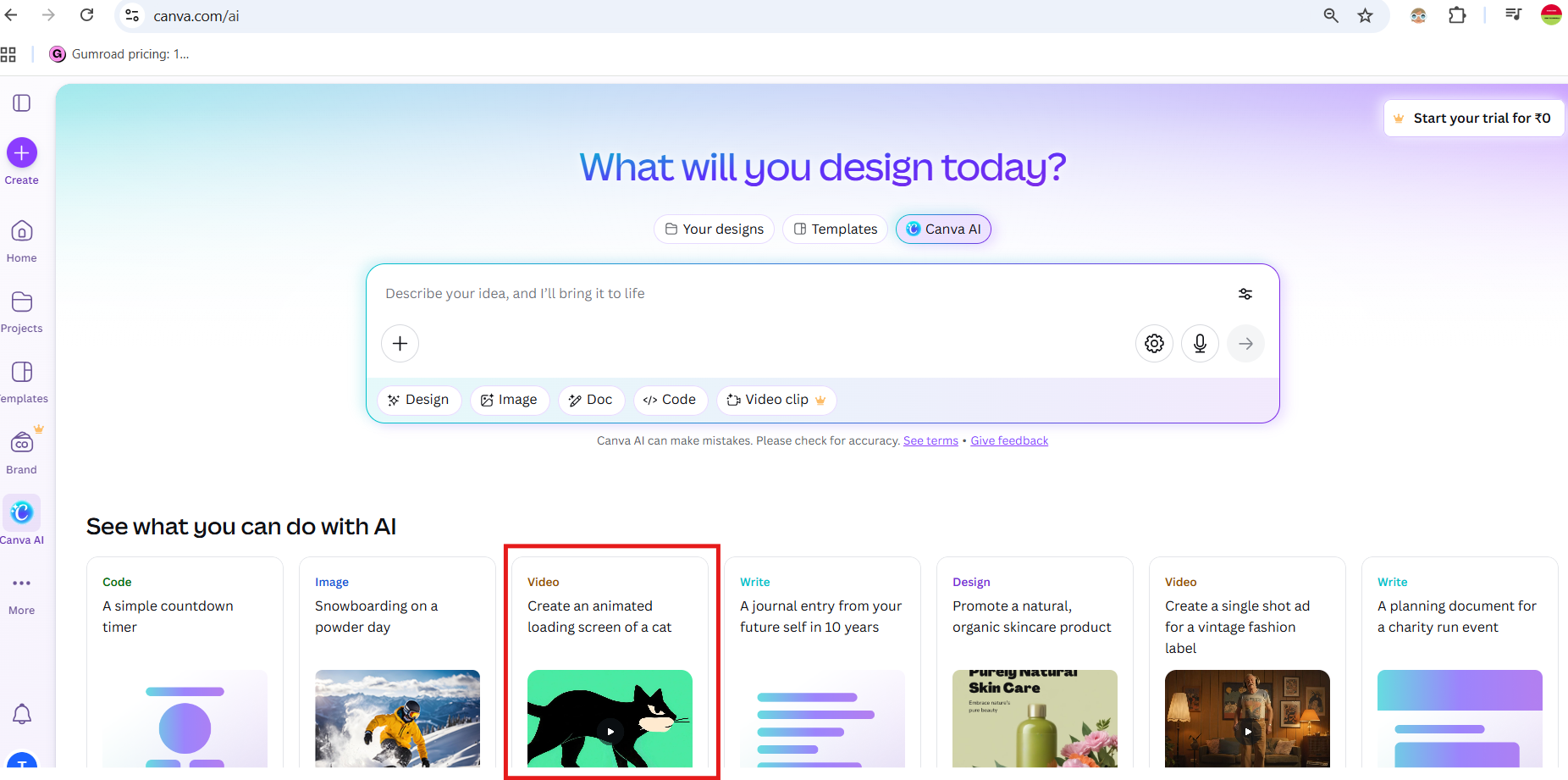
Search Bar :-
In this section , you can search related to your designs or templates or using canva AI.
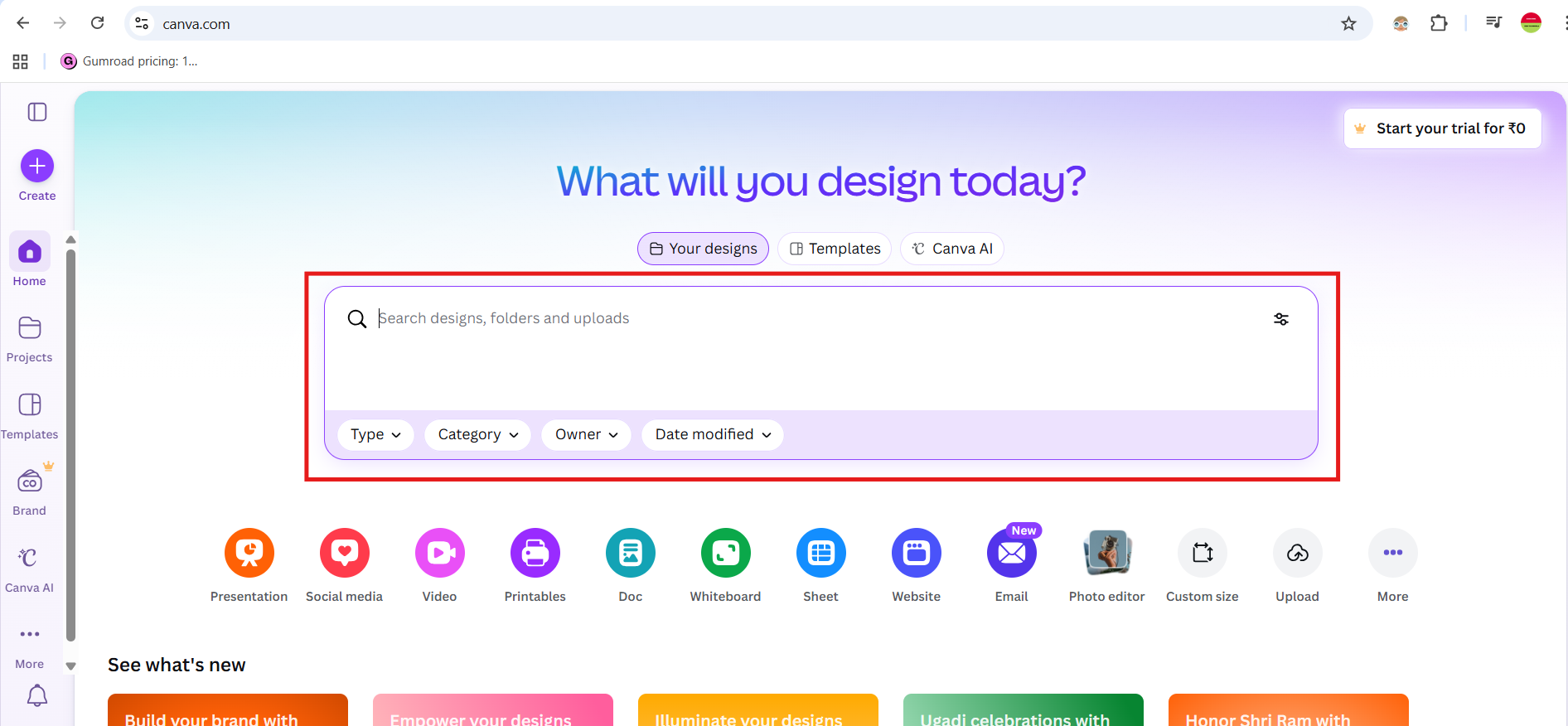
Home Menu Design Formats:-
1. Presentation
- Used to create slide presentations similar to Microsoft PowerPoint or Google Slides.
- Common uses:
- School or college presentations
- Business meetings
- Project reports
- Comes with slide templates, animations, and transitions.
2. Social Media
- Templates made for social media posts.
- Includes designs for platforms like:
- Instagram posts & stories
- Facebook posts
- YouTube thumbnails
- Sizes are already optimized for each platform.
3. Video
- Used to create videos with text, clips, music, and transitions.
- You can make:
- Short videos
- Reels
- Presentations in video format
- Marketing videos
4. Printables
- Designs meant to be printed on paper.
- Examples:
- Posters
- Flyers
- Invitations
- Certificates
- Brochures
5. Doc
- Used to create documents similar to Microsoft Word or Google Docs.
- Useful for:
- Reports
- Articles
- Notes
- Scripts
6. Whiteboard
- A large digital workspace for brainstorming and collaboration.
- Used for:
- Mind maps
- Planning ideas
- Team discussions
- Works like a virtual whiteboard.
7. Sheet
- Used to create tables and data sheets similar to Microsoft Excel or Google Sheets.
- Useful for:
- Data organization
- Lists
- Tracking information
8. Website
- Used to design simple websites directly in Canva.
- Example:
- Portfolio website
- Event page
- Business landing page
9. Email
- Used to design email newsletters or email templates.
- Can be used for marketing emails or announcements.
10. Photo Editor
- You can:
- Adjust brightness
- Remove background
- Add filters
- Add text or graphics
11. Custom Size
- You can:
- Lets you choose your own width and height.
- Useful when you need a specific dimension (for example: 1920 × 1080).
12. Upload
- You can:
- You can upload:
- Images
- Videos
- Audio
- PDFs
Side Design Description:-
CREATE Menu:-
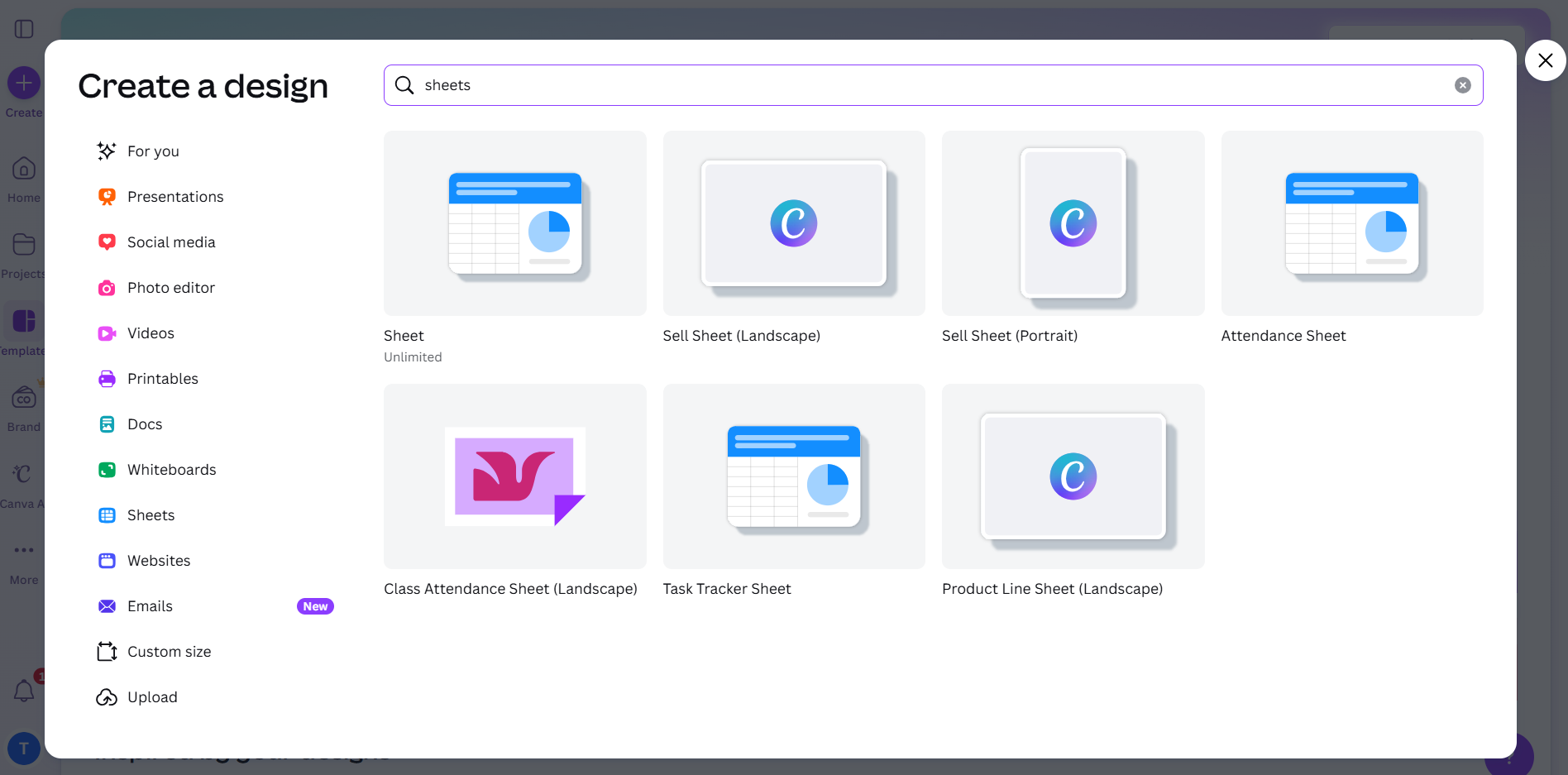
You can create all Home menu items like presentation,social media,photo editor,videos,printables,docs,sheets,websites and much more , by clicking this create menu button.
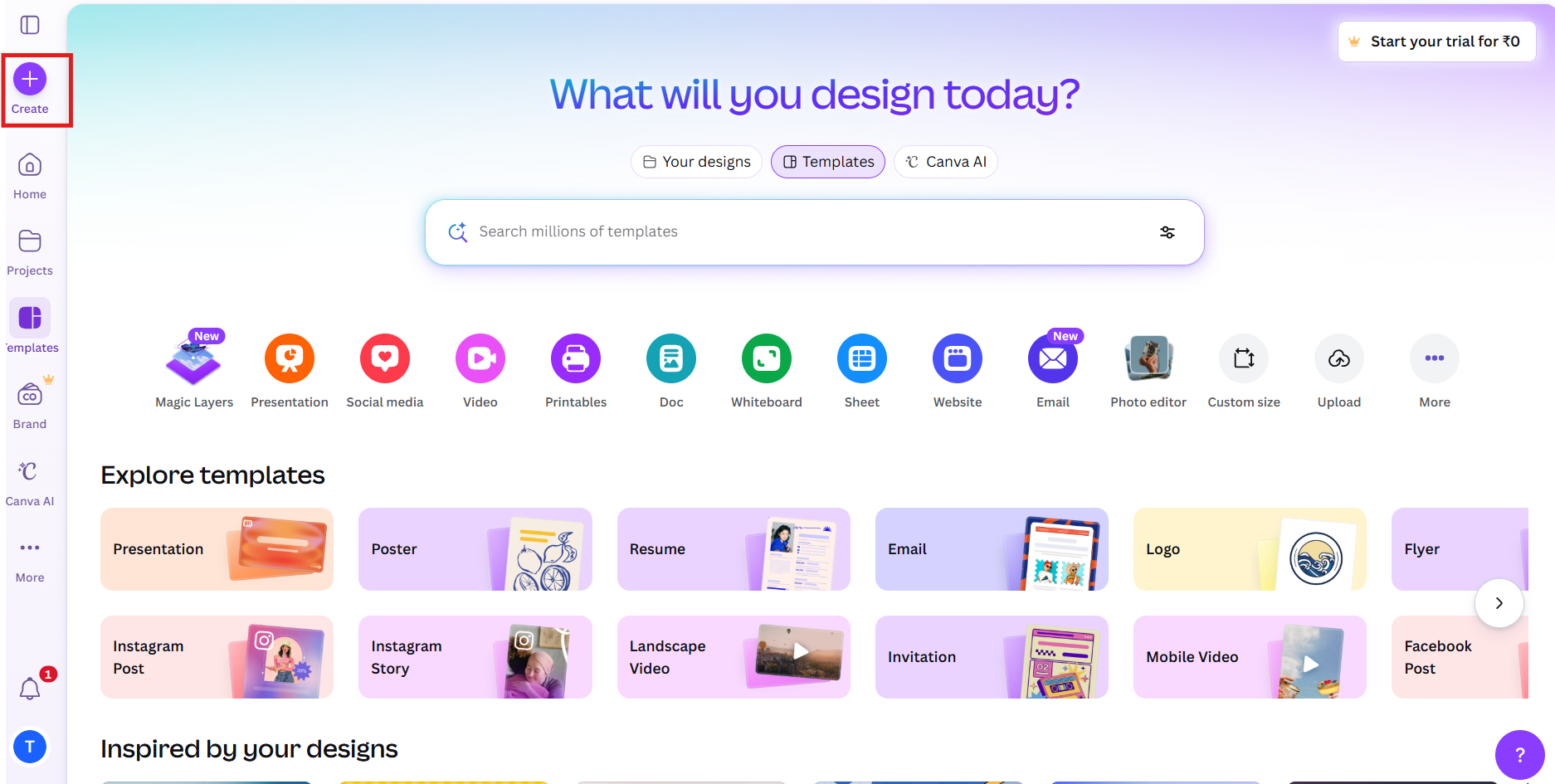 After clicking plus symbol,you will see following screen.
HOME Menu:-
The Home menu items is used to create presentation,social media,photo editor,videos,printables,docs,sheets,websites and much more .

PROJECTS Menu:-
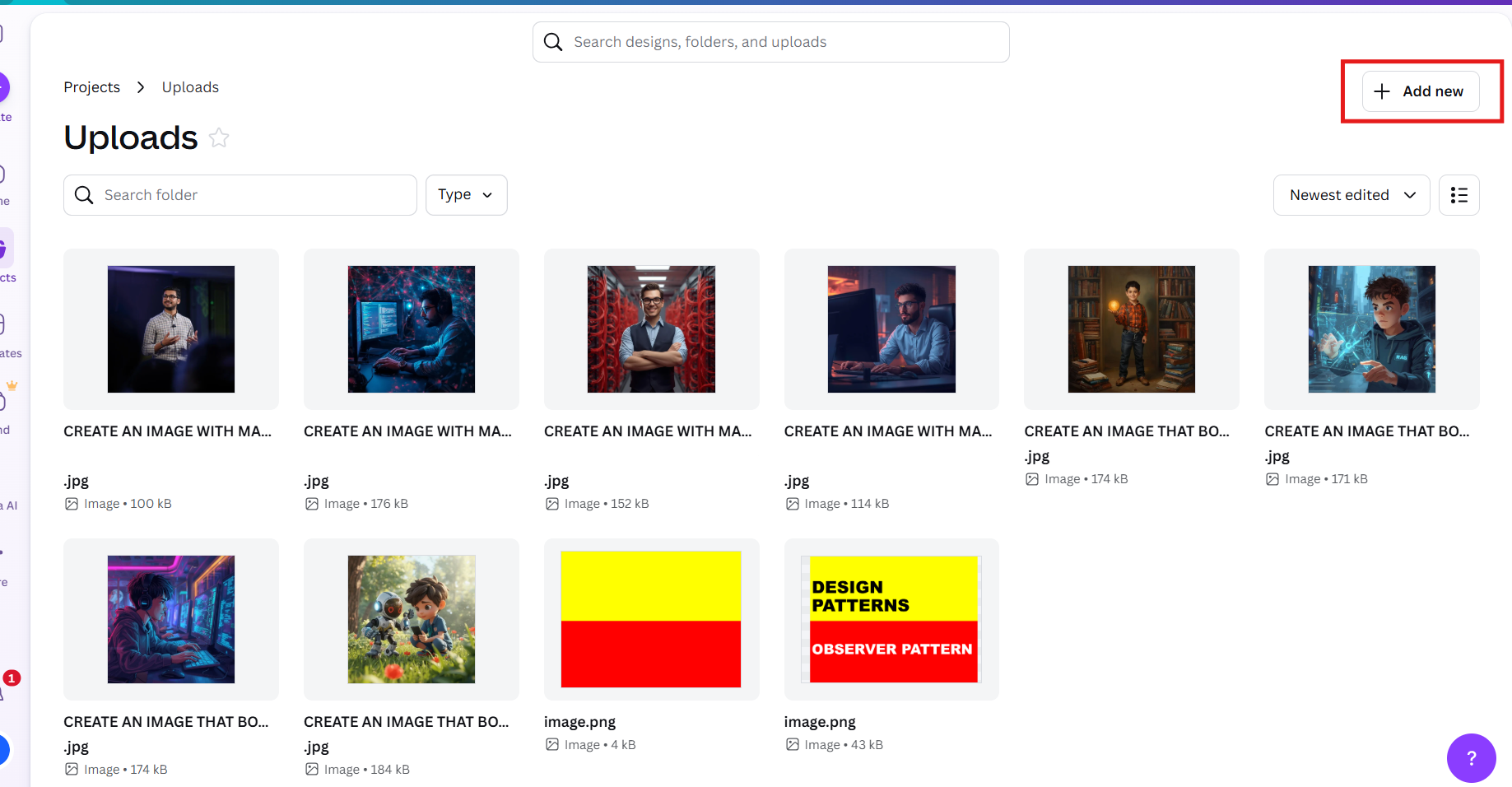
The Projects menu is to organize your designs in folders.When you click projects menu, you will see one folder option with uploads button.Just click that upload button,you will be redirected
to uploads page,which has your recent designs and also option to add new folder on right top corner.
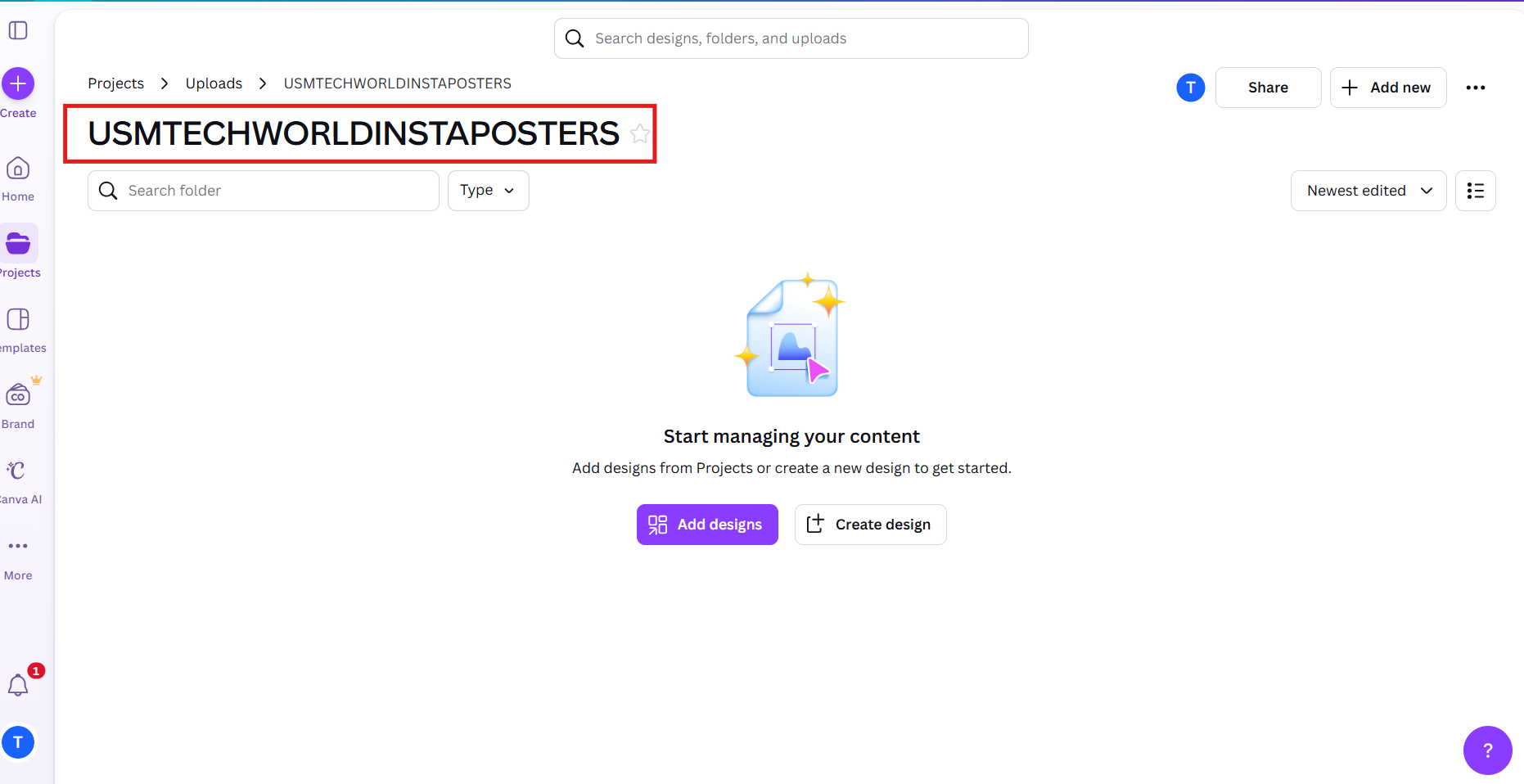
For example,i need to create instagram poster or youtube Thumbnail for my "USMTECHWORLD" site.
Inside "USMTECHWORLDINSTAPOSTERS" folder you can create your own design using your home screen templates like social media.These folders keeps your design well organized.Anytime you can open
these designs and edit.Another example,suppose if you are working with multiple clients, you can create folders for each client and maintain it.
TEMPLATES Menu:-
The templates menu has so many sample templates.Suppose if you want to design greeting card or marriage invitation card,then you will see many templates related to that.
You can get any type of posters or youtube thumbnails or any kind of templates by typing in search bar.For example, i need to create posters related to yoga. just search by typing yoga in search bar, you will
get many posters related to yoga.Likewise you can search topics like health,finance,gym,manufacturing etc.
Note:- For designs , the images or videos marked with crown symbol are Pro features.